Showing posts with label Computer. Show all posts

Sunday, September 3, 2017

What to look out for when getting your next laptop

 FOR the contemporary tech-smart population, a laptop is often regarded as more than just a work tool. Many rely on the laptop for many purposes spanning social, entertainment, educational and business-related needs. This makes it imperative for the right decision to be made when shopping for a new device or a replacement unit for your old laptop.

Laptop
Laptop


Though some things may weigh more than others depending on the purpose for which you are getting your laptop, here are six basic things to look out for when getting you next laptop.

  • Size: Gone are the days when laptops weighed a tonne and took up so much space. On-going advancements in the sphere of computer manufacturing has seen a lot of refinements in laptop sizes. For students and busy executives, portability is a core requirement. The easier it is to fit your laptop PC into a small bag, the better. Therefore, a laptop with a screen size between 12.5 – 14 inches and weighing between 1 – 1.5kg fits the bill.

When shopping for such a portable device, it is often best to go for a notebook. A notebook is a personal computer that foregoes some functionality to remain light-weight and small. Notebook computers are sleek, typically weigh less than five pounds and are small enough to fit easily into your briefcase or a back-pack. An Ultrabook also falls into this category as they are portable and light-weight.

  • Processor Speed: Most computer applications require that the computer system meets minimum requirements in order for the installation to run. One of those requirements is processor speed. Processor speed measures (in megahertz or gigahertz; MHz or GHz) the number of instructions per second the computer executes. Intel’s Core-based processors including Core i3, Corei5 and Core i7 are usually the best bet for computing power as these processors deliver top performance.

  • Screen quality and Resolution: Considering the length of time the average user spends working on a laptop, screen quality is a factor worth taking into cognizance when buying a laptop. The harsh glare from grainy laptop screens may pre-dispose users to side-effects as constant staring at the screen may result in redness, itching and blurring of the eyes, or headaches and migraines, in extreme cases. Touch-screen laptops, many of which are glossy, may also not be a good choice as these throw back a lot of reflections, thereby putting the eyes under considerable strain. Closely related to this, you must consider the resolution of the laptop before making the buying decision. If you fall into the class of heavy users who work on their laptop for upwards of eight hours in a day, it is more advisable to go for a High Definition (HD) screen with resolution of 1600 x 900 or higher.

  • Random Access Memory (RAM): This is a form of computer data storage which stores frequently used programme instructions to increase the general speed of a system.

Depending on the type of laptop you wish to buy, a RAM of between 2G – 4GB and upwards will be required to get your system working optimally. 

Memory speed refers to the amount of time that it takes the RAM to receive a request from the processor and then read or write data.

Generally, the faster the RAM, the faster the processing speed of your laptop. In other words, with a faster RAM, it is easier for you to use the laptop for your multimedia or multi-tasking activities. RAM speed is measured in Megahertz (MHz), millions of cycles per second, so that it can be compared to your processor’s clock speed.

  • Battery: Bearing in mind the peculiar power supply challenges in the country, you are better off investing in a laptop with a strong battery that can guarantee at least up to 10 hours of battery life on average use.

For a notebook, a battery capacity of 10,000mAH/3.7V or higher is adequately sufficient to begin with, especially as both the total charging capacity and life of a laptop computer’s battery will diminish as you use your computer.

  • Price: Laptop prices are often predicated on the features of the device, especially the ones listed above. As such, a laptop with a faster processor speed and RAM would likely cost more than a model with less speed.

However, increasing competition in the market and more attention to research and development of new products makes it possible these days to find moderately-priced devices boasting features that would naturally be found in more expensive models.

Friday, August 25, 2017

How to Turn Your PC or Laptop into WiFi Hotspot

Turn your PC or laptop into WiFi Hotspot

Hello friends, here I am going to share a simple software through which you can turn your laptop or computer into Hotspot. Know here how to use your laptop or PC as a router for internet connection for other people.
wifi hotspot
How to Turn Your PC or Laptop into WiFi Hotspot

DOWNLOAD NOW

Alternatively:        DOWNLOAD NOW
                                             or
                                  DOWNLOAD NOW

My WiFi Router is a simple and small size software that create a physical WiFi router and then turns your PC into a Wi-Fi Hotspot.

With My WiFi Router, you can share a solitary web connection (LAN, Ethernet, Data-Card, 3G/4G, Wifi) with various gadgets, for example, laptops, smart phones, android cell phones, PDAs, and iPods. You can share the internet connection, as well as you can also share videos across those connected devices too.

Make your PC or Laptop into WiFi Router

My WiFi Router gives you access to all the data you require about the connected gadgets on the system, for example, the name, IP Address, and Mac Address. You can likewise be able to deal with those connected gadgets as well.

My WiFi Router is very easy to use; download & install, input a Hotspot name and password and start up a connection, it's that simple. But, the really neat thing about My WiFi Router is the ability to extend the wireless range of your default device. This fact alone makes My WiFi Router one of those applications you really should have in your toolkit.

Tuesday, August 22, 2017

How to do system restore on Windows PC

How_to_do_system_restore_on_a_PC.jpg
There come those times when your PC just goes bonkers on you. Even the most tech savvy of us have those dark, evil days when we stare at our PCs and ask; “What have I done to deserve this?”. Luckily, device manufacturers have integrated several recovery options that make it easier to recover from such situations; one of such tools is the system restore. Doing a system restore is very easy, even for a newbie.
What is a system restore?
A system restore – as the name implies – is the process of taking a PC back or froward in time to what is called a “Time Stamp” or “Restore point”. Consider a Time Stamp / Restore point as a screenshot or image of your entire PC as at the time it was created. A System restore resets the PC’s system files and settings back to that of the selected restore point. Restore points are usually
automatically created before any installation is done for easy recovery in case the installed program / driver turns out to be faulty.
What makes a system restore so helpful?
System restore is a very easy and convenient way to recover from a malfunctioning PC without having to go through the rigors of debugging, formatting or OS re-installation. It is so easy that even a newbie won’t need more than this simple guide to pull it off.
What can a system restore fix?
A system restore is your friend as it can:
  • Help recover an accidentally uninstalled program or driver
  • Help uninstall a stubborn program
  • Undo settings you put in place that have gone haywire
  • Fix some cases of virus / malware attack
  • Help fix a hanging or crashing PC
What can’t a system restore fix?
As useful as system restore is, it:
  • Will not recover deleted personal files (documents, media files, emails etc)
  • Will not fix a corrupted file
  • Will not fix hardware issues
  • Will not undo a PC format
  • Will not restore a previously installed OS

Do I lose my personal files after a system restore?

No. A system restore doesn’t tamper with your personal files. A System Restore can make changes to Windows system files, registry settings, and programs installed on your computer. It also can make changes to scripts, batch files, and other types of executable files on your computer; however, your personal files (documents, e-mail, photos, music and other media files) will be untouched.
What is the difference between a system restore and a factory reset?
A system restore is simply taking the PC back to the way it was at a given time (restore point) and only affects system files and settings but not personal files. A Factory reset on the other hand wipes the PC back to the way it was when it was newly purchased. A factory reset affects system files, settings and personal files.
Can a system restore be undone?
Whether or not a system restore can be undone depends on where the system restore was done from. If the system restore was done from within Windows then a restore point would’ve automatically been created by Windows before proceeding with system restore, making it easy to restore to the newly created restore point in case system restore did not have the desired effect. If; however, system restore was done in safe mode or in system recovery then the only option would be to pick a different restore point.
What must I do before proceeding with a system restore?
It is important to create a restore point so that the system restore can easily be undone if it does not have the desired outcome. Windows should automatically create a restore point before the system restore but you best create one yourself just in case.
How can I create a restore point?
Creating a restore point is easy:
  • Press the Windows button or start menu
  • Search for ‘Create a restore point’ and launch it
  • Click create at the bottom
  • Type in the desired name of the restore point you’re about to create (its good practice to include a date in the name)
  • Click create and wait till the restore point is successfully created
For how long are restore points saved?
Restore points are stored till the disk space reserved for system restore is filled after which older restore points will be deleted for newer restore points. Turning off system protection deletes all stored restore points and stops further creation of restore points.

How can I do a system restore?

You can do a system restore from within Windows, in Safe mode or using Recovery tools:
From within Windows
  • Press the Windows button or start menu
  • Search for ‘Create a restore point’ and launch it
  • Click ‘System restore’
  • A dialogue box explaining system restore will appear, click ‘Next’
  • Select the restore point of your choice; tick ‘Show more’ (if you see such) to see more restore points
  • Click ‘Finish’ to confirm system restore
  • Do not interrupt or shutdown the PC during system restore.
  • After a successful system restore, you should see a confirmation of system restore’s success and an option to restart your PC
From Safe mode
  • Shutdown the PC
  • Press the power button
  • Once the lights appear, keep tapping F8 till you see Advanced boot options
  • Scroll down, highlight Safe mode then press enter
  • The Icons will look big and blurred; not to worry, this is safe mode
  • Press the Windows button or start menu
  • Search for ‘Create a restore point’ and launch it
  • Click ‘System restore’
  • A dialogue box explaining system restore will appear, click ‘Next’
  • Select the restore point of your choice; tick ‘Show more’ (if you see such) to see more restore points
  • Click ‘Finish’ to confirm system restore
  • Do not interrupt or shutdown the PC during system restore.
  • After a successful system restore, you should see a confirmation of system restore success and an option to restart your PC
From Recovery tool
  • Insert a windows DVD, CD or bootable USB into the relevant drive
  • Shutdown the PC then power it on
  • Once you see ‘Press any button to boot from CD / DVD’ , press any button
  • You should see a white progress bar saying ‘Windows is loading files’ loading at the button
  • Once Windows is through loading files, you should see a dialogue box. Ensure the correct language and keyboard layout is selected then click ‘Next’
  • Click ‘Repair your computer’
  • A list of available Windows OS on the PC will appear. Select the one you wish to carry out system restore on and click ‘Next’
  • You’ll be provided with a list of recovery options, select ‘System restore’
  • Select the restore point of your choice; tick ‘Show more’ (if you see such) to see more restore points
  • Click ‘Finish’ to confirm system restore
  • Do not interrupt or shutdown the PC during system restore.
See the video tutorial below or @ http://youtu.be/b7mSZ3KurY8
<iframe width="635" height="357" src="https://www.youtube.com/embed/b7mSZ3KurY8" frameborder="0" allowfullscreen></iframe>

Sunday, April 16, 2017

How to recover accidentally formatted or corrupted USB devices.

The issue of files getting lost or corrupted is a hot topic on many online forums. At some point or the other, you might have lost a file to accidental deletion, corruption or circumstances you can’t explain. I myself recall those dark days when i would save my favorite songs on my 256 MB MP3 player (256 MB of then felt like the 100 GB of now) and then for reasons unknown, they would just stop playing and I would have to format my beloved MP3 player then start the music hunt from scratch; tragic! If you have been through a similar or worse experience, then i shall – in this tutorial – explain how to recover corrupted files or lost files so you can say goodbye to such bitter occurrences. What is a corrupted file?
A corrupted file is a computer file that has become unreadable, unusable, maliciously altered or inoperable to your computer (be it a laptop / desktop PC, mobile device etc). In other words, your computer either can’t recognize such a file and thus, tags it as void or is running a malicious file instead of the original.
What could cause a file to get corrupt?
Sincerely, there are quite a number of reason why files get corrupted. Common reasons are:
  • Bug in the Software that created the file: The software which created the file in question might have experienced a run time error while saving or creating the file.
  • Virus or Malware: Malware or virus might corrupt certain programs or damage the file system itself. For this reason, new or existing files might experience a modification which would leave them corrupted.
  • Improper unmounting: This usually occurs when an external storage device (SD Card, USB stick, External Hard Disk etc) is suddenly disconnected from your computer while actively in use or without using the safely remove or eject option.
  • Error occurring during reading, storage, writing, transmission or processing of files: Interruption of data transmission ( like a poor wireless connection or environmental conditions like rain) and hardware / software failure are also common causes of corrupted files.
  • Power outages or other power-related problems (see how to-make a laptop pcs battery last longer/ ).
  • Hardware problems or failures i.e hard drive failures, bad sectors, bad RAM, and the likes.
  • Crash dumps or poor programming which could result in a hard restart or incorrectly saved data.
How do I know when a file is corrupted ?
File corruption could either be of the detected or undetected type. The detected types are the ones you would usually notice due to error messages while the undetected types are silent (could be dangerous) alterations which still leave the file undamaged. There are some general indicators of a corrupted file:
  • If you try to run or open the file using a program which should be able to read it but can’t or you get an error message then the file is likely corrupted.
  • If you try to delete the file and your computer pops up a ‘…could not recognize…’ error message and isn’t able to delete the file then the file is likely corrupted.
  • An altered checksum can also be used to identify a corrupt file.
My files just vanished without me deleting them, why?
It is possible they have been accidentally deleted or hidden from you either by a malware or by a user of the computer.
Why do my files keep getting corrupt whenever I try to move them?
This mostly points to an already corrupt or damaged storage device (SD card, USB stick, HDD etc). It is important you repair the storage device ( See how-to-fix-repair-corrupt-memory-card-sd-card-or-usb-drive/ ) which you have been attempting to transfer your files to without success. It is sometimes due to a malware infected PC.
How do I prevent my files from getting corrupted ?
  • Avoid forced-shutdowns i.e shutting down by holding down the power button (see https://how-to-fix-a-computer-that-will-not-startup-or-boot/ ).
  • Ensure to use the ‘safely remove’ or ‘eject’ option before disconnecting a USB device.
  • Avoid hibernating or sleeping your PC for too long
  • Run regular checks and maintenance on your storage devices
  • Have a strong and updated antivirus installed on your PC
  • Whenever you get an error while trying to run a file, ensure to troubleshoot
  • Be wary of the kinds of software you install ( PC optimizers, RAM boosters etc)
  • Allow files to finish cloying or downloading before using
How do i prevent my files from getting lost ?
The most reliable approach is to frequently backup your files to an external storage device ( SD Card, USB stick, external HDD etc) for easy retrieval in case of data loss. Also, avoid using SHIFT+DEL on your PC, use just DEL instead so that deleted files will be sent to the Recycle bin from which they can easily be restored.
Can corrupt files harm my device?
This would depend on the file in question. If the corrupted file is an important OS file, or a file corrupted by a virus then you might want to have the issue rectified asap because your PC is at risk. If however it is just some media file which got corrupted due to improper handling then its harmless to your PC, you only lose the file.
How can I recover corrupted files / lost files?
Data recovery comes in very handy when you find yourself in such a mess. Here are a few good methods:
How to fix a faulty storage drive using CHKDSK
The chkdsk command helps scan a drive for errors and fix if specified. To use chkdsk:
  • Connect the storage device to a safe PC and wait for it to be recognized
  • Open ‘My Computer’ and note the storage device’s drive letter (e.g I , G or H)
  • Press your windows button and search for cmd.exe
  • Right-click on it and run it as Administrator
  • If the storage drive letter is G, type chkdsk /f G: then press Enter (note the spaces)
How to recover files turned to shortcuts by the recycler virus
 The recycler virus is responsible for those times when all your files get replaced by their shortcuts which would all be the same size alongside some other shortcuts like porn, sexy etc. To fix this:
  • Connect the storage device to a safe PC and wait for it to be recognized
  • Open ‘My Computer’ and note the storage device’s drive letter (e.g I , G or H)
  • Press your windows button and search for cmd.exe
  • Right-click on it and run it as Administrator
  • Type G: and press enter (where G is the drive letter from the second step above)
  • Type attrib -r -a -s -h /s /d and press enter (*Note: put a space between each item like -r space -a space -s ……)
  • Wait for the process to finish running then go to your storage device
  • All your files should have been returned.
  • Delete any folder called recycler
How to show hidden files and folders
 It is possible that your files have been hidden from view either by another user or a malware. To show hidden files:
  • Tap the windows button or click the start button.
  • Search for Folder Options.
  • Click it when found.
  • Click the View tab.
  • Tick or check Show hidden files, folders and drives .
  • Click OK then Apply
How to search for a file using its extension
 Its possible that the files are still on your computer but their locations have changed. You can search for a file using its extension (last 3 characters after the “.” in the file name). To do this:
  • Tap the windows button or click the start button.
  • Search for .avi for movies of type avi
  • A list of .avi movies will be shown to you
  • Click ‘See more’ to view all .avi files
  • You could search for .mp4 , .mp3 , .jpg , .3gp, .png etc
How to recover lost files using data recovery software
Data Recovery Software can help you recover lost files even after they have been deleted and the drive formatted. You can try Icare Data Recovery, Recuva or TestDisk .
How can I repair corrupted files?
There are a number of approaches you could apply to repair corrupt files. One valuable tool in repairing corrupt OS files is the SFC / SCANNNOW command. To run it:
  • Press the windows button or click the start menu.
  • Search for cmd.exe
  • Right-click on it and run as Administrator
  • Click Yes or enter your Admin password if prompted for it
  • Type SFC /SCANNOW (*Note: Ensure to leave a space between SFC and /)
  • Press Enter
  • Your files will then be scanned and repaired if necessary. It may take 10 or 20 minutes, depending on your system
Sometimes, files aren’t saved with the correct file extension after download or transfer. For example, a movie file (.avi) might have been saved as .txt. Changing the file extension of such a file could fix the issue. Also, File-repair is a good tool but if it can’t repair a file of your choice then it means you need a file-format specific repair tool. You can request for such a tool at the HOVATEK FORUM and ensure to state the file type you wish to repair.
See video tutorial below or @ http://youtu.be/zpaL2NlXh5A :
<iframe width="635" height="357" src="https://www.youtube.com/embed/zpaL2NlXh5A" frameborder="0" allowfullscreen></iframe>

Wednesday, February 3, 2016

How to Download Any Premium PC Software For Free

This months, I'm going to make alot of things easier for you so long you are ready to get a long with patience. Having a PC this days is no longer for the pocket weighty guys but for every one who truly appreciate the value of internet.

What makes you an IT guru is not the computer school you went to but the knowledge of the relevant software needed at a particular time makes you an IT guru.


I want to show you how to download any software for free on your PC. Don't buy it, just download all for free.

Where Can I Download Any PC Software for free?
GetintoPc gives you everything you need all for free. Your own job is to think the software and they'll deliver it to you. Both premium and all kind of PC software.

They provide direct download link to your choice of PC software and your download will begin.

Where Can I Access them?
Go to www.getintopc.com and search for your desired PC software.

When next you are looking for where to download any PC software, don't forget getintopc or else you'll be ban from using the internet.

Monday, February 1, 2016

TeamViewer: Your Real Time Key To Access Any Computer In The World

Every entrepreneur and internet geeks, business man /woman need this. Wherever you are across the globe and you are reading this right now, or perhaps, you have been looking for  the easiest way to access or fix your client  remote computers right from where you are; then this tutorial is for you.  Its going to bring out the Bill Gate in you. Just seat tight and lets dive in together.

Let me quickly introduce you to TeamViewer app. It’s an application that remotely controls the activities of another computer anywhere in the world with just a simple click. In-order words, it allow  me “SUCCESSMINING” to access your computer anywhere I am in the world if at all there is something you want me to fix on your system.

This will even make work easier for me, if at all you are encountering any problem and you don’t know how to go about fixing it, then this is going to be our meeting point because am going to unlock the genius in you with just simple steps.

Why You Should Use Team Viewer App
1.       Remote Control: It allows you to control  your customer'  computers remotely via the internet, as if you were sitting right in front of them.
2.       File Transfer: you can easily transfer files or an attachment from your computer to another computer anywhere in the world.
3.       Mobile: Meaning you can carry this app anywhere you want to go on your mobile while you access another computer with it.

How Can I Download This Application
1.       Download it here
2.       Run and install it on your device
3.       During installation, choose PRIVATE USE, check VPN and FILE TRANSFER box.
4.       Once the installation complete, you should note your password and User ID.

Device supported

It currently supports Windows, window Phone 8 Android, Iphone/ipad, Mac, and Linus. Blackberry is too black to carry this application.

That is it guys. So if you’ve got problem with your computer device, it can easily be fixed by a professional through this app without getting to your house.
 
Don't forget to share this to others too...........

Wednesday, January 13, 2016

How to Check If Your Antivirus is Real or Fake

It is good to know your antivirus status whether it is real or fake. Your computer is vulnerable to threat if you are using a fake antivirus since it won’t be able to detect virus on your computer.
Check-if-Your-Computer-Anti-Virus-Is-Woking-or-not
Today, I want to share a simple trick that can be used to test if an antivirus is real or fake or if the antivirus is working or not. Follow the steps explained below to know if your antivirus is working or not.

Steps to Check if Your Antivirus is Working or Not

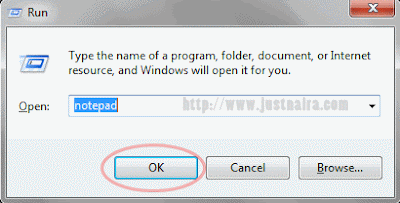
==> Press Windows Key + R to launch run command, then write Notepad to open notepad.
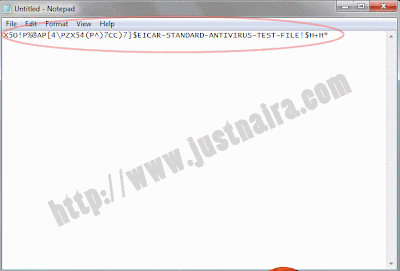
==> Copy and paste the code below into notepad:
X5O!P%@AP[4\PZX54(P^)7CC)7}$EICAR-STANDARD-ANTIVIRUS-TEST-FILE!$H+H*
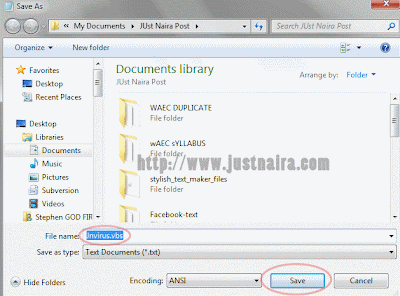
==> Now press CTRL+S to save this file, and save the file as jnvirus.vbs on your computer.
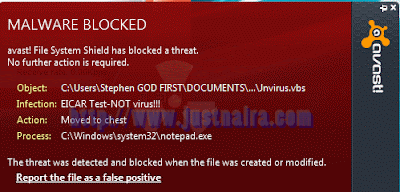
==> If your antivirus is real and working, it won’t allow the file to be saved on your computer. But if your antivirus is not working, it will save on your computer then delete it immediately. My avast antivirus reject the file when I was about to save it on my Pc.
Note that this tutorial will not harm your computer in any way. Share your antivirus name through the comment box if it is working.

How to Use Windows Host Files to Block Access to Website(s)

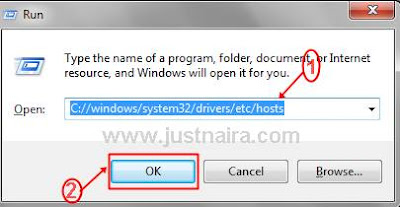
==> First launch run command on your computer. This can be done by pressing Win+R key on your keyboard
==> Now type the code below into the run command box and press enter and then Notepad will show some information

C://windows\system32\drivers\etc\hosts
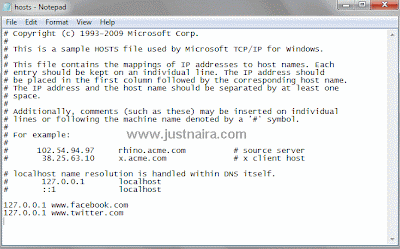
==> Now go to the last line and add the website you want to block using the format below.
For example, if I want to block access to Facebook and Twitter on my PC, I add this code to the end of the Windows Host Files

127.0.0.1 www.facebook.com
127.0.0.1 www.twitter.com
Now save and exit the file.
If you later want to unblock the website, follow the same process as explained above and delete the line of code you entered.

How to Clean PC RAM Without Notepad | Increase Computer Speed

You computer might become slow if you’re working with many programs on your computer. This usually happens when your computer RAM (Random Access Memory) is full of remaining progress pieces that you’ve worked on and you no longer need. So if you get rid of those pieces that you no longer need, your computer performance will be enhanced i.e. your computer will work at it’s full speed, since your PC RAM has been freed of  programs that aren’t useful.
Speed-Up-Computer-With-Notepad
Here is a simple technique you can use to clear your computer RAM cache with Notepad.

Steps to Use Notepad to Enhance Computer Performance

1. Click on “Start” button ==> “All Programs” ==> “Notepad
2. Now type “Mystring=(80000000)” without quotes
3. Save the file on your computer as “ram.vbe”.
4. Now click on the file you created to clear your computer RAM to make your computer almost 80% faster.

If you have any question(s) regarding this tutorial, don’t hesitate to use the comment box below.

How To Install Windows 8 or 8.1 From a USB Device

Installing Windows 8 or Windows 8.1 from a USB device, like a flash drive, has become one of the most common and essential thing this days.
It’s not surprising why many new computers, especially tablets and smaller laptops and desktops, no longer have optical drives.
USB flash drive
That Windows 8 install disc is of no use and importance if there is no disk drive available to run the DVD!
If you want to install Windows 8 from a USB device, you’ll need to copy the setup files from the DVD to the USB drive. But, by copying it simply there won’t be everything. Windows 8 software is also sold as a downloadable ISO file which, if you choose to buy Windows 8 that way,it requires similar steps to get it properly copied to a USB drive.
Irrespective of the kind of Windows 8 DVD software you have, you need a flash drive to copy the setup, or a Windows 8 ISO file to achieve the same goal. The following steps will guide you through the installation process with the Windows 8 installation files properly copied to a flash drive.
Duration: Transferring/ Copying the Windows 8 installation files into a flash drive or other external USB device will take between 20 to 30 minutes, depending on the format your copy of Windows 8 is in right now and the speed of your computer.
Compatibility: The following steps can also be used for Windows 8 (standard) or Windows 8 Pro, as well as those editions of Windows 8.1.
Required Materials:
  • A USB flash drive (4 GB for 32-bit, 8 GB for 64-bit)
  • A Windows 8/8.1 DVD or ISO
  • Availability of a computer with a DVD drive, if you have a Windows 8 DVD installation disk) with either of these operating systems (Windows 8, Windows 7, Windows Vista, or Windows XP) installed or the Availability of an External USB DVD Drive.
NOTE: If you have a Windows 8 ISO file and you want to transfer it to a flash drive, begin with second step (Step 2) but if you have a Windows 8 DVD instead, Proceed from Step 1.

Installing Windows 8 or 8.1 From a USB Device

  1. Create an ISO file from the Windows 8 DVD. This is the process in which you create a single file, called an ISO image, which contains all the data stored on the Windows 8 setup DVD disc. This ISO file can be created with Daemon Tool or Ripping. Once you have an ISO image created from your Windows 8 disc, come back here and continue on with this tutorial which will explain how to get that ISO file onto a flash drive.
    Note: If you have created your ISO file already with your favorite program, called “ripping,” then you can use whatever application or software you mostly use. However, if you’ve never created an ISO image, or don’t have a program installed right now that does it, Kindly search for tools and application with a video tutorial on how to Create an ISO file.
     

  2. Download the Windows 7 USB/DVD Download Tool from Microsoft and then install it. This is a free Microsoft program that helps to properly format your flash drive and then copies the contents of the Windows 8 installation ISO file you have to the USB flash drive.
    Note: Don’t be disturbed by the program title “Windows 7”. This program works perfectly well with Windows 8 ISO files which is compatible with all these windows Operating systems, e.g. Windows 8, Windows 7, Windows Vista, or Windows XP.
     

  3. Launch the Windows 7 USB DVD Download Tool program. The shortcut should appear on the Desktop, as well as in “All Programs” on your Start menu, depending on Version of Windows you installed on your computer.
     
  4. On Step 1 of 4: Choose ISO file screen, Click Browse
     
  5. Locate, and then select, your Windows 8 ISO file. Then click or touch Open. Note: If you have downloaded Windows 8 from Microsoft, check your Downloads folder or your Desktop for the ISO image. If you created an ISO image from your Windows 8 DVD, the ISO file will be wherever you have created it.
     

  6. Click Next.
     
  7. At the Step 2 of 4: Choose media type screen, Select USB device Note: At this stage, you can see that there is also a DVD option. Since our aim is to transfer Windows 8’s setup files to a USB flash drive, this tool you can also be used to burn a Windows 8 ISO image to a DVD or BD disc.
     

  8. At the Step 3 of 4: Insert USB device screen, choose from the drop-down list the USB flash drive or USB external hard drive which you want to copy the Windows 8 setup files into and then click Begin copying. Tip: If the USB storage device you’re planning to use hasn’t been connected, you can insert it into the computer now and then click the blue refresh button to make it show up on the list.
     

  9. Click Erase USB Device if you are prompted with a “Not Enough Free Space window” message. If this message doesn’t appear, don’t worry, it means that your flash drive or external hard disk is already empty. Note: Every data/file you might have on this USB drive is going to be deleted as part of the process of getting the Windows 8 installation files copied.
     

  10. On Step 4 of 4: Creating bootable USB device, At this point, the Windows 8 installation files will begin to copy, it just takes few minutes for the Windows 7 USB DVD Downloaded Tool to prepare the drive. The first Process you will see is Formatting, which will be done under few seconds, depending on the size of your USB drive. The next process will be Copying files which could take up to 30 minutes long, depending on which Windows 8 ISO file you’re working from, as well as You computer speed.
     

  11. If all stages were successfully completed, then the next screen should display Bootable USB device created successfully with a Status that says Backup completed. You can now close the Windows 7 USB DVD Download Tool program window. The flash drive, or other external USB drive you’re using has now been properly configured as a bootable device and also has the necessary files to install Windows 8 on any system.
     

  12. Boot from the USB device that you just created to start the Windows 8 install process. Tip: If the Windows 8 setup process doesn’t start, it’s very likely that you’ll need to make boot order changes in the BIOS. See How To Change the Boot Order in BIOS if you need help doing that.
    Tip: If you have a UEFI based system and you still can’t boot Windows 8 Setup from the flash drive, even after setting the USB device first in the boot order, see Tip #1 below for help.

Tips & More Information

1. The Windows 7 USB DVD Downloaded Tool formats your USB drive as NTFS, a file system that many UEFI based computers will not boot from when on a USB drive.
To work around this issue, do this:
  • After Step 11 above, copy all the files from your flash drive to a named folder on your PC.
  • Manually Format the flash drive, with the older FAT32 file system option.
  • Copy back all the files from the named folder you created in Tip 1.1 back to the flash drive.
  • Repeat Step 12 above.
2. There are other alternative methods for getting a Windows 8 or 8.1 ISO image properly onto a USB flash drive but I prefer the procedure I’ve outlined above, but if you have trouble with it, that general ISO-to-USB procedure should work as well. 
3. Still having trouble installing Windows 8 or 8.1 from a flash drive or other USB device? Use the contact page, social networks or via email, and more.
Still having trouble installing Windows 8 or 8.1 from a flash drive or other USB device? Use the contact page, social networks or via email, and more.

Tuesday, January 12, 2016

How to Install Windows XP In Less Than 15 Minut

Windows XP is a popular operating system used by most PC users. Though Windows XP popularity is decreasing but some PC users still use it due to its versatility, easy to operate and so on. New computers now come with pre-installed Windows 8 but I’ve seen cases of friends that upgrade from Windows XP to Windows 7 but later degrade it back to Windows XP because Windows 7 doesn’t work well on their old PC.
Windows-XP-Installation
Windows XP installation process is slow and it annoys most users, it takes around 40 minutes to install. Today, I want to share a trick that can be use to install Windows XP in 15 minutes. To do this, follow the procedure outlined below.
Before you proceed, read: How to Activate and Make Windows XP Genuine

Procedures to Install Windows XP in 15 Minutes or Less

==> Boot from Windows XP disk
==> After the files have been copied, you will be required to select the location to install Windows XP
==> After selecting the disk, the installation process will start and it will show 40 minutes approx time to complete the installation process
==> Here is where the trick to quicken the installation process will be used. Just press Shift+F10 a command prompt will appear, now type taskmgr and then press enter. This will bring out the task manager , now click on process tab and locate the process named Setup.exe
==> Finally, right click on Setup.exe and set its priority to high
You can share how this trick has help save your time during the installation of Windows XP on your computer via the comment box below.

Thursday, January 7, 2016

How to install Preloader USB VCom Drivers MTK65XX On Your Pc

Install MTK65XX Preloader USB Vcom Drivers for SP Flash Tools in Windows
Day in day out guys flash their Android phone which get bricked due to one problem or the other Generally many users face the problem of VCom drivers not getting installed for their MediaTek device which will make your Sp flash not to response well when you want to flash your android, we require VCom drivers to be properly installed  when we want to flash firmware/Rom in our device with SP Flash Tools or any other similar tool. we will getting the best and easy way to install the VCom drivers

This Guide works with Windows XP, Vista and Windows 7 Based Operating systems,

How Best To Install USB VCOM Drivers :-  
  Step 1 :- You need to Download MTK USB VCOM Drivers for you device model click the below link.
MTK6582 /MTK6592 /MTK6589 / MTK6577 or any other MTK65XX

Step 2 :- Now open Device Manager in your PC by clicking the window button and typing the device manager

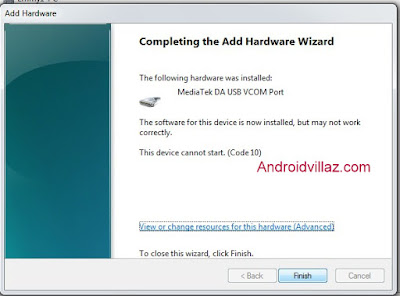
Step 3 :- In Device Manager click on your PC name and then click on Add legacy hardware, as see below screenshot.

VCOM Drivers
Add legacy hardware
Step 4 :- Now in Add Hardware Wizard click on Next to continue as see below

Preloader USB VCom Drivers MTK65XX
Step 5 :- Click the Install the Hardware that i manually select from a list (Advanced) 
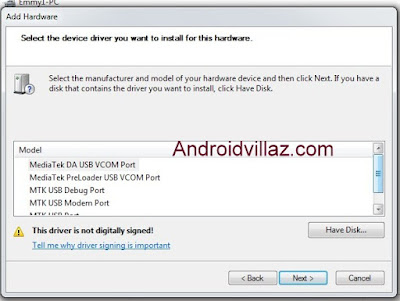
Step 6 :- It will Show All Devices Click the Next button to continue.
 
Step 7 :- Click the Have a Disk button  now browse to the Vcom drivers you download make sure you have extracted it out from the zip select the inf file according to your PC bits the first inf file is for 32bit system while the second file is for 64bit then click open next click Ok.
Step 8 :- Now click on Next on the wizard to install the drivers and when promoted for security issue just click on install any anyway to finish the driver installation.
Preloader USB VCom Drivers MTK65XX On Your Pc
Step 8 :- It will install Drivers after that you will be ask to click finish and restore to make the drivers works
How Best to install Preloader USB VCom Drivers MTK65XX On Your Pc

Congratulation you have successfully install VCom drivers in your pc you can now flash your firmware/Rom via Sp flash without getting any problem

Sunday, October 25, 2015

How To Protect External Hard Disk Drives With Password

Time to protect your external Hard Drive with encryption ro secure you data from any unauthorized access
Security is always a first priority for ever user and when its about some personal data then it become more important. And talking about external hard drive disk where you stores lots of personal data that you might not store in your computer. And anyone else can have access to your data that is your data is not at all secure. So time to secure them with your desired password that you can set with the complete guide that we are going to discuss right here. So have a look on complete guide discussed below to protect your external drive with a security password.

How To Protect External Hard Disk Drives With Passwords

How to Protect External Hard Disk Drives With Passwords
The method below discussed is just base on system settings that will allow you to lock your drive with password without any need of third party tool as the inbuilt feature is there in windows to protect drives and another with a third party tool. Just follow up some simple steps below to proceed.

Steps To Secure Your External Hard Drive With BitLocker:

  1. First of all connect your external hard drive to your Windows Pc and turn it on.
  2. Now click on Start button and then navigate to Control Panel -> Security -> Bitlocker.Encrypt Drive1
  3. Open the program and then click on Turn On BitLocker which you get just next to your external hard drive.Encrypt Drive2
  4. Now there tick on “Use a Password to Unlock the Drive” option there and the enter a same password in both fields and then click on “Next“.Encrypt Drive3
  5. Now time to save your key somewhere for that click on “Save the Recovery Key to a File,” and then select any location where you want to save your key for future reference.
  6. Now click on save option and the proceed by clicking on next button.
  7. Now click on Start Encryption option and wait for the process to complete and it can take a time to complete depending upon drive size.
  8. Thats it you are done, now you drive will always a require a password to access files inside it.

Steps To Password Protect Your External Drive With StorageCrypt

  1. First of all in your windows PC download and install the tool StorageCrypt.
  2. Now launch the tool and then connect your drive with PC.
  3. Now in the tool select your device to encrypt with password.
  4. Now select quick mode and then protect your drive with your desired password.Encrypt Drive4
  5. Now start the tool and encryption process will start and your drive will now get secure with your set password.
Also read:
So above is all about How To Protect External Hard Disk Drives With Password. With the above two methods you can easily secure your external hard drive with your desired password and get secured from any unauthorized access.
Hope you like this cool post, Do Hit the SHARE BUTTON Below... THANKS.

How To Change Boot Screen In Your Windows PC

For windows users we are here How To Change Boot Screen In Your Windows PC. While booting in your windows pc you see default windows loading process that are by default windows boot screen. But the screen see quite be boring because watching the same screen again and again is not cool. But this can be changed, yes it is possible to change your Boot screen and you can replace them with a very cool one that you will love to have. So proceed with complete guide below.

How To Change Boot Screen In Your Windows PC

The method is very simple and can be done using one windows tweak that will change the file of your default boot screen and replace it with a very cool one that you will surely love instead of boring one. So proceed with the steps below.

Steps To Go About It:

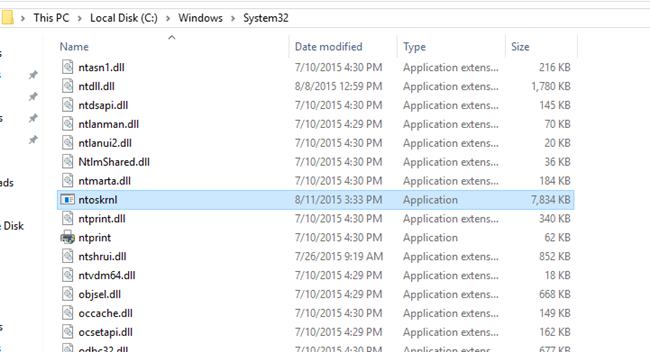
  1. First of all you need to create a backup of your windows boot screen system file for that go to My Computer > C:/ > Windows > System32.
  2. Now there you will see file ntoskrnl.exe copy and paste the file in any other location of your computer.
  3. Now download and install Resource Hacker in your computer.
  4. Now after downloading and installing launch the tool in your windows PC11
  5. Now in the program click on File and then select Open option and then locate thentoskrnl.exe file.
  6. Now when the file is opened click on Action button there and then select replace Bitmap option.
  7. Now there select any of your desired screen and then click on OK button.
  8. Now click on File button and then choose Save As option.
    And now save the file as ntoskrnl.exe.
  9. Now, turn your PC off and then start it in the Safe mode.
  10. Now copy your created ntoskrnl.exe file and paste it into the C:/ > Windows >System32.22
  11. Now restart your computer in normal mode.
  12. Thats it you are done, with this you boot screen is changed with awesome image that you have selected.
The above is all about How To Change Boot Screen In Your Windows PC. With this you can easily get a new look in your windows and can get rid of the default look that you never want to get back again after this cool windows tweak. 
Hope you like this, SHARE this with others too...THANKS.